
Vixly billing can send a link for saving a card. The save-card page says that nothing is charged now; it takes you to the card provider’s page to add the card. Saving and automatic charging are separate choices.
Steps
- Open the save-card link from the email and check the company name on the page. Make sure this is the account you intended to update.
- Read the information under Save a card. If an automatic-charge consent checkbox is shown, read it before deciding whether to select it. It concerns future Vixly invoices, rather than only saving the card.
- Select Continue and complete the card provider’s page. Card details are entered there, not into the Vixly public form.
- Return to the result page and read its message. Thank you. Your card is being saved. means the card-saving confirmation is being processed.
What happens next
If you agreed to automatic charging, the consent shown on the page explains that it applies to Vixly invoices on their due date and can be turned off by contacting Vixly billing. A normal invoice payment can also offer Save this card for future invoices; check that choice separately from automatic charging.
This link was already used to save a card. means this save-card link has already been used. Contact billing if you need help updating the card rather than repeatedly submitting the old link.
On this screen
1 marks the save-card section; 2 points to continuing to the provider. Review any automatic-payment choice before leaving this page.
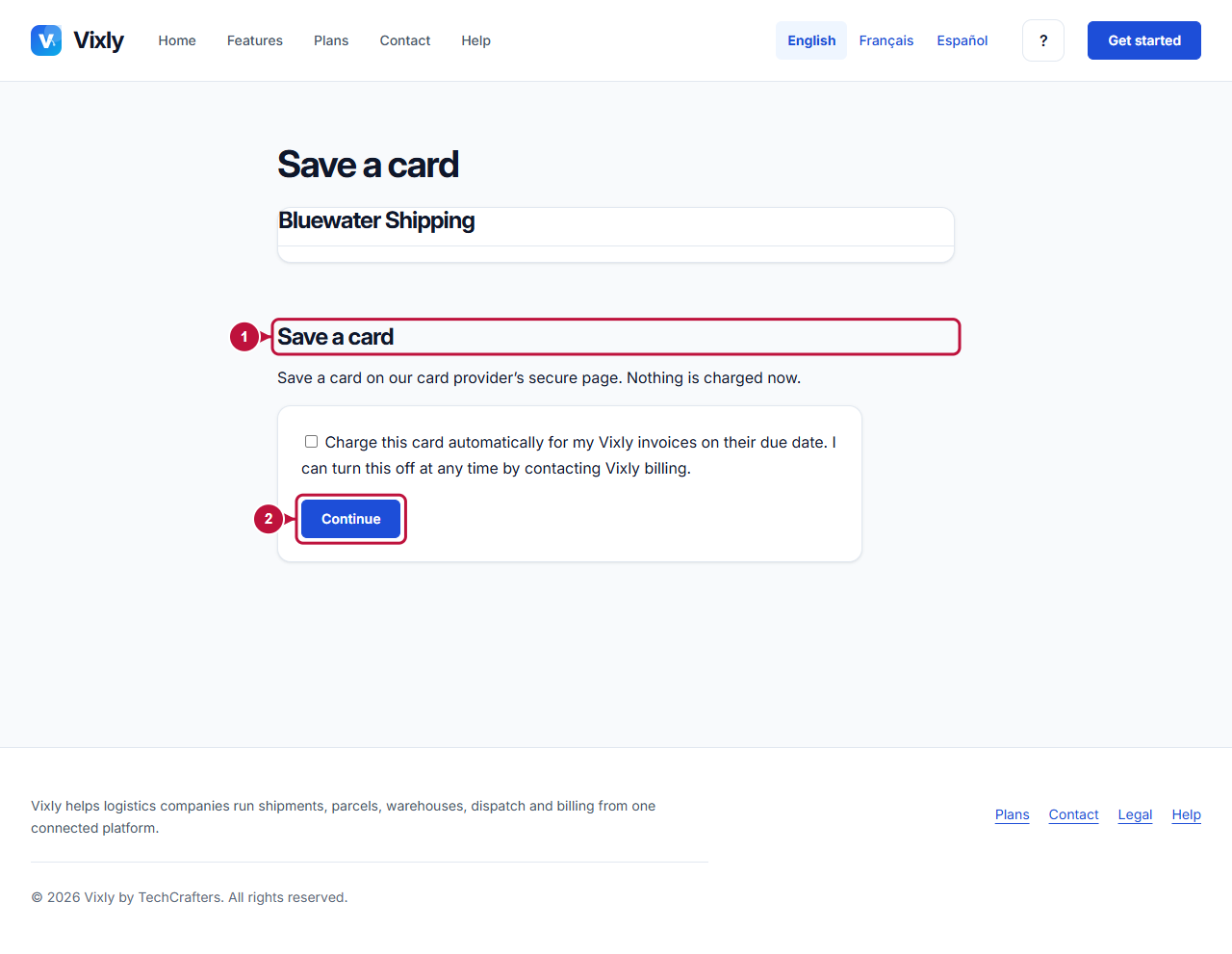
Illustrative screen with fictional demo data. Prices, dates and available choices may differ. Select the image to open it at full size.