
If your chosen subscription requires an initial payment, sign-up opens the first invoice. When the page says We are preparing your invoice. This page refreshes on its own in a few seconds., let it refresh while the invoice is prepared. Trials and first periods with nothing due can skip this step.
Steps
- Check the company name, Invoice, Amount due and any Due date shown. Use the amount and currency on this invoice.
- If card payment is available, review Save this card for future invoices and any automatic-payment consent separately. Saving a card is not the same choice as allowing automatic charges. Select Continue to payment to continue to the card provider’s page.
- If Zelle is offered, send the payment through your bank using the displayed recipient details, then complete I sent a Zelle payment on this page.
- Return to the sign-up progress page after payment and read its status before taking further action.
If something goes wrong
The payment was cancelled. Nothing was charged. means that checkout was cancelled; use Go to payment to return to payment if you still need to pay. A reported Zelle payment is checked before it counts as payment. A confirmation message can therefore appear before workspace setup is ready. Do not treat the return page as proof that every payment has already cleared; follow its current status and the receipt email.
On this screen
1 marks the company and invoice to check; 2 the card-payment section; 3 the action that continues to hosted checkout. No card number is entered on this screen.
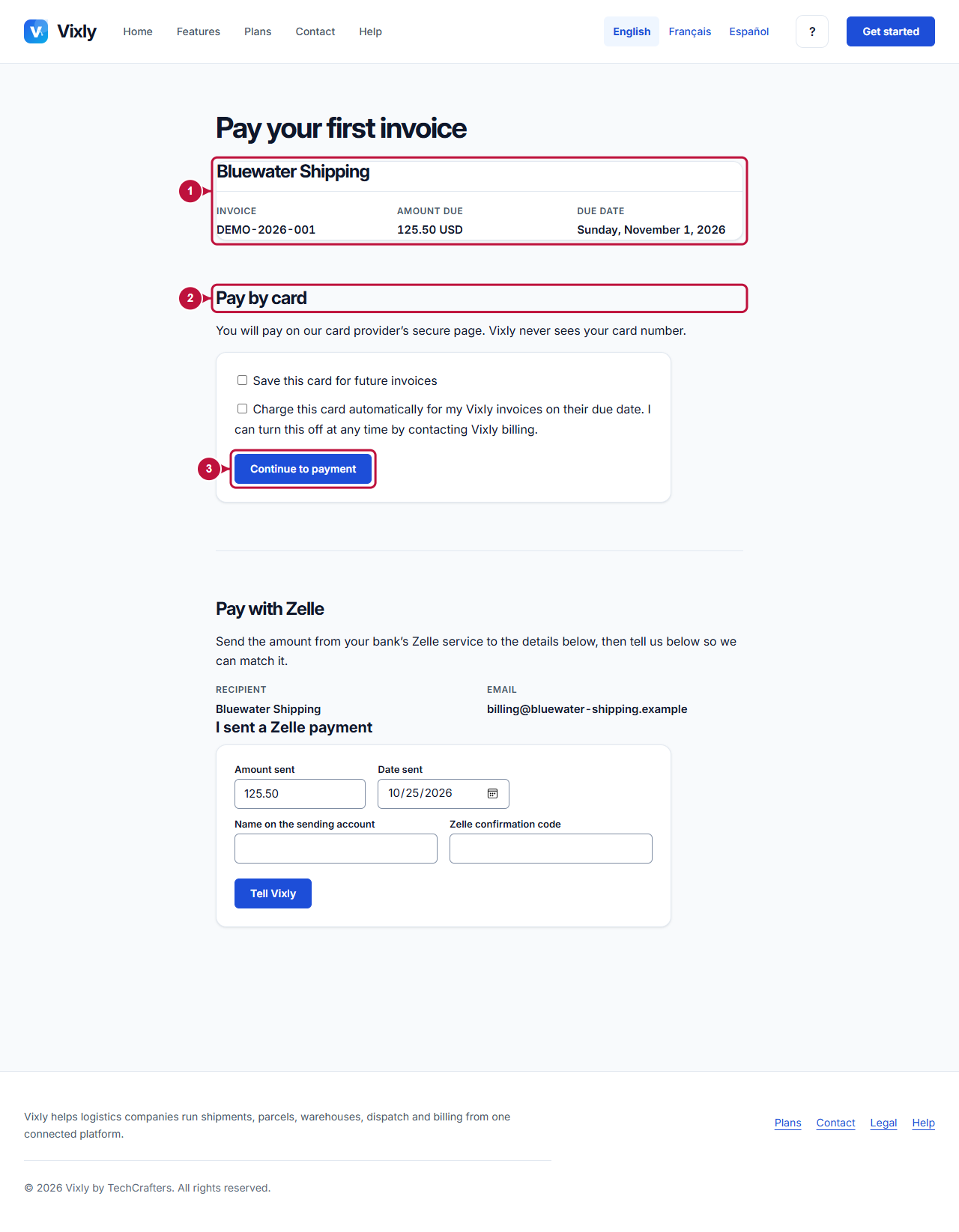
Illustrative screen with fictional demo data. Prices, dates and available choices may differ. Select the image to open it at full size.