
When Zelle is offered on your invoice page, you make the transfer through your bank and then tell Vixly about it. Submitting the report does not send money from your bank and does not immediately settle the invoice.
Steps
- Read Recipient and whichever email, tag or phone details the page shows. Use the current invoice’s recipient details, rather than details copied from an older payment. A QR code may also be displayed.
- Send the invoice amount through your bank’s Zelle service. Check the amount and keep the bank’s payment confirmation.
- Under I sent a Zelle payment, enter Amount sent, Date sent, Name on the sending account and Zelle confirmation code. These identify the transfer you have already sent.
- Select Tell Vixly. Read the message after returning to the invoice or registration page.
What happens next
Vixly checks the report against the payment received at the bank. The page can show the amount and date being checked while confirmation is pending. Do not send the same money again because the invoice has not changed immediately.
If a report is already waiting, the page shows its status instead of another report form. If you made a mistake in the report or need help matching a transfer, contact Vixly billing with the invoice details and the bank confirmation.
On this screen
1 marks recipient information; 2 the amount sent; 3 the date sent; 4 the sender; 5 the bank confirmation code; 6 the reporting button. A report still needs staff confirmation.
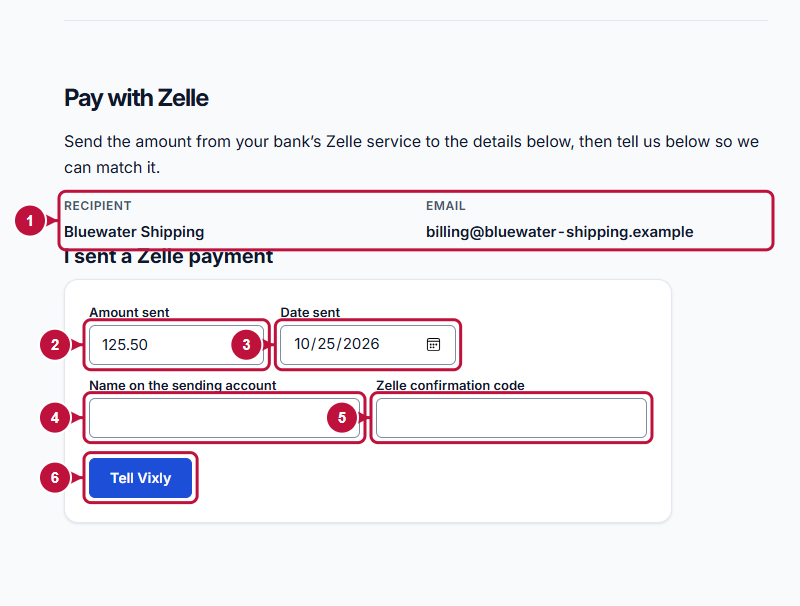
Illustrative screen with fictional demo data. Prices, dates and available choices may differ. Select the image to open it at full size.