
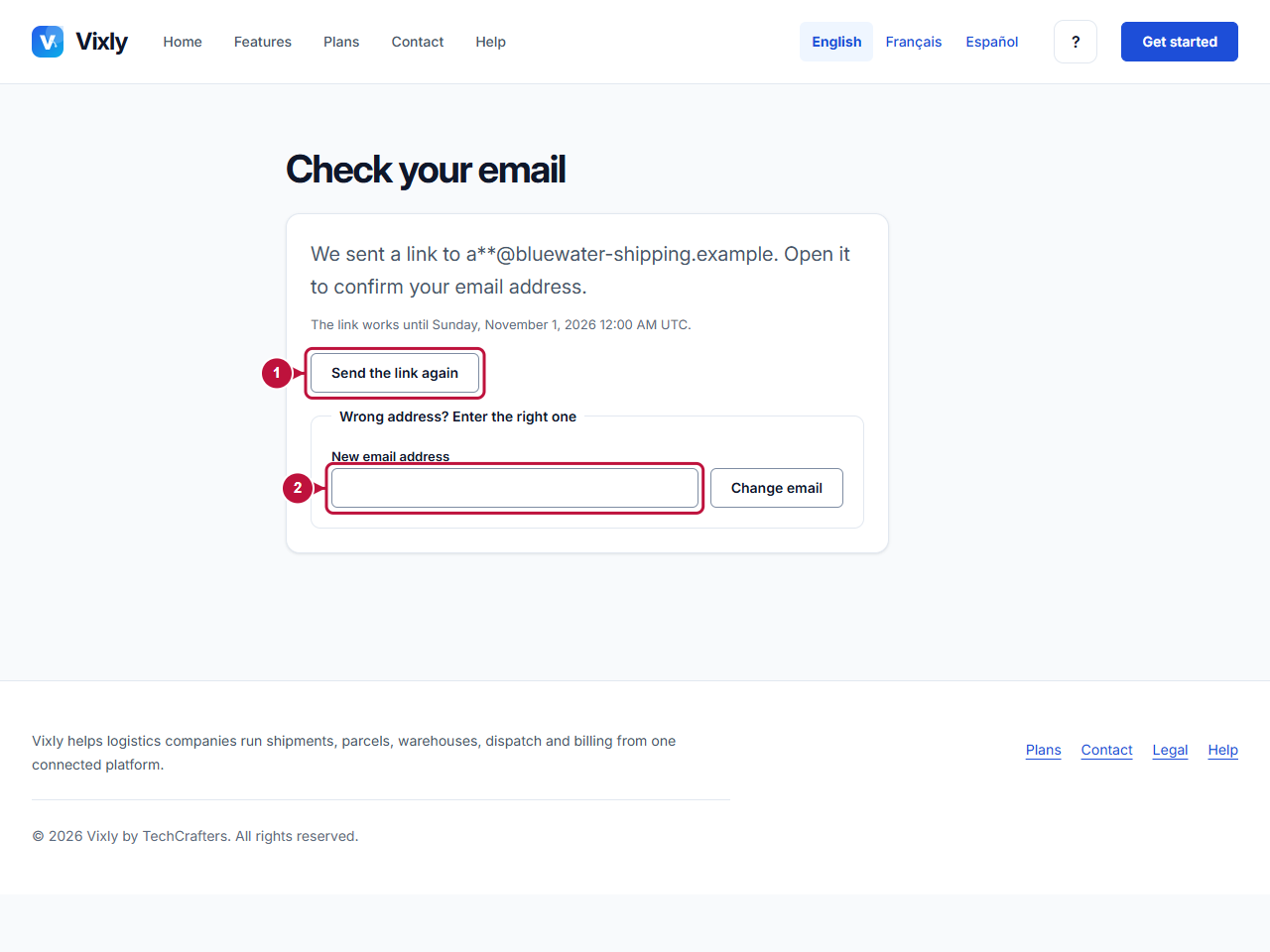
After the company form, Vixly asks you to confirm the account owner’s email. The email step shows a partly hidden address and the deadline for using the link. Check both before leaving the page.
Steps
- Open the inbox for the owner email you entered. Find the confirmation email from Vixly and open its link before the displayed deadline.
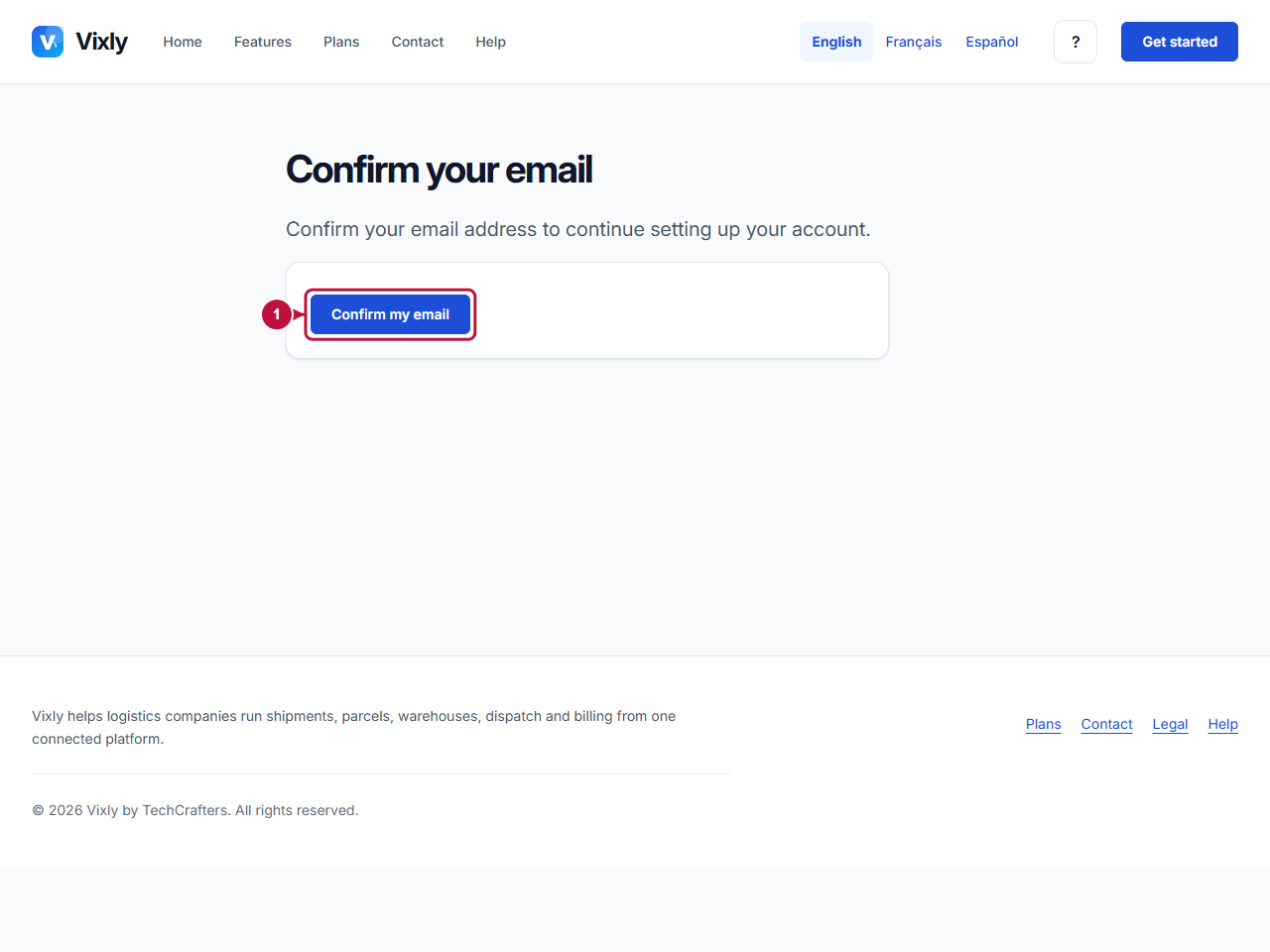
- On the page that opens, select Confirm my email. This confirms the address and continues to the plan step. You can complete this confirmation in another browser using the emailed link.
- If the email did not arrive, check the address shown and your unwanted-mail folder. Select Send the link again on the email step if you need another link.
- If the address is wrong, enter the correction in New email address and select Change email. Look for the new message at the corrected address.
If something goes wrong
This link is incomplete. Open the link from the email again. means you should reopen the complete link from the email. Opening the link alone does not confirm the address; use the confirmation button. If the link has expired or your registration has ended, follow the page’s message rather than repeatedly using the same old link. Keep the newest email until you reach the next step.
On this screen
1 points to resending the email; 2 marks the address-correction field. In the second image, 1 points to the confirmation button reached from your email link.
Illustrative screen with fictional demo data. Prices, dates and available choices may differ. Select the image to open it at full size.