
The first sign-up form collects the details used to create your company’s account. Check the billing address carefully before submitting: the form asks you to confirm that it is correct for invoices.
Choose your permanent Vixly address
Choose carefully: your Vixly address is permanent and cannot be changed after registration. Check the spelling and the full address before continuing.
This is your company’s website address, not its postal address. Choose a short, familiar business name or recognizable initials. A shorter part of the legal name often works well.
| Business | Address name | Example address |
|---|---|---|
| Harbour Demo Logistics | hdl | hdl.vixly.ltd |
| Harbour Demo Logistics | harbour | harbour.vixly.ltd |
| Bluewater Shipping | bluewater | bluewater.vixly.ltd |
| Andes Courier | andes | andes.vixly.ltd |
Examples are fictional and names must be available. Avoid unnecessary words and numbers. Your team uses the Operations workspace at /staff; customers use their portal at /customer on this company address.
Steps
- Under Company, enter Legal name, Company email and Company phone. Use Trading name (optional) if your company trades under another name.
- Under Address, fill in Address line 1, City and Country. Add Address line 2 (optional), State or province and Postal code where applicable. Select This address is correct; it will appear on invoices. after reviewing the address.
- Under Account owner, enter Full name, Email and Phone. Make sure the owner can open the email sent to this address.
- In Address name, choose lowercase letters, numbers and hyphens. This becomes the address used by your team and customers, and the form says it cannot be changed later.
- Read Terms of Service and Privacy Policy, select the acceptance checkbox, complete the human check if shown and select Create account.
If something goes wrong
If the address name is unavailable, choose another. If you see Please confirm the address before continuing., review the billing address and select its confirmation checkbox. Keep the form’s company email and owner email distinct when they are different addresses.
On this screen
1 marks company details; 2 the address and its confirmation; 3 the owner’s contacts; 4 the workspace address name; 5 terms acceptance; 6 the account-creation button.
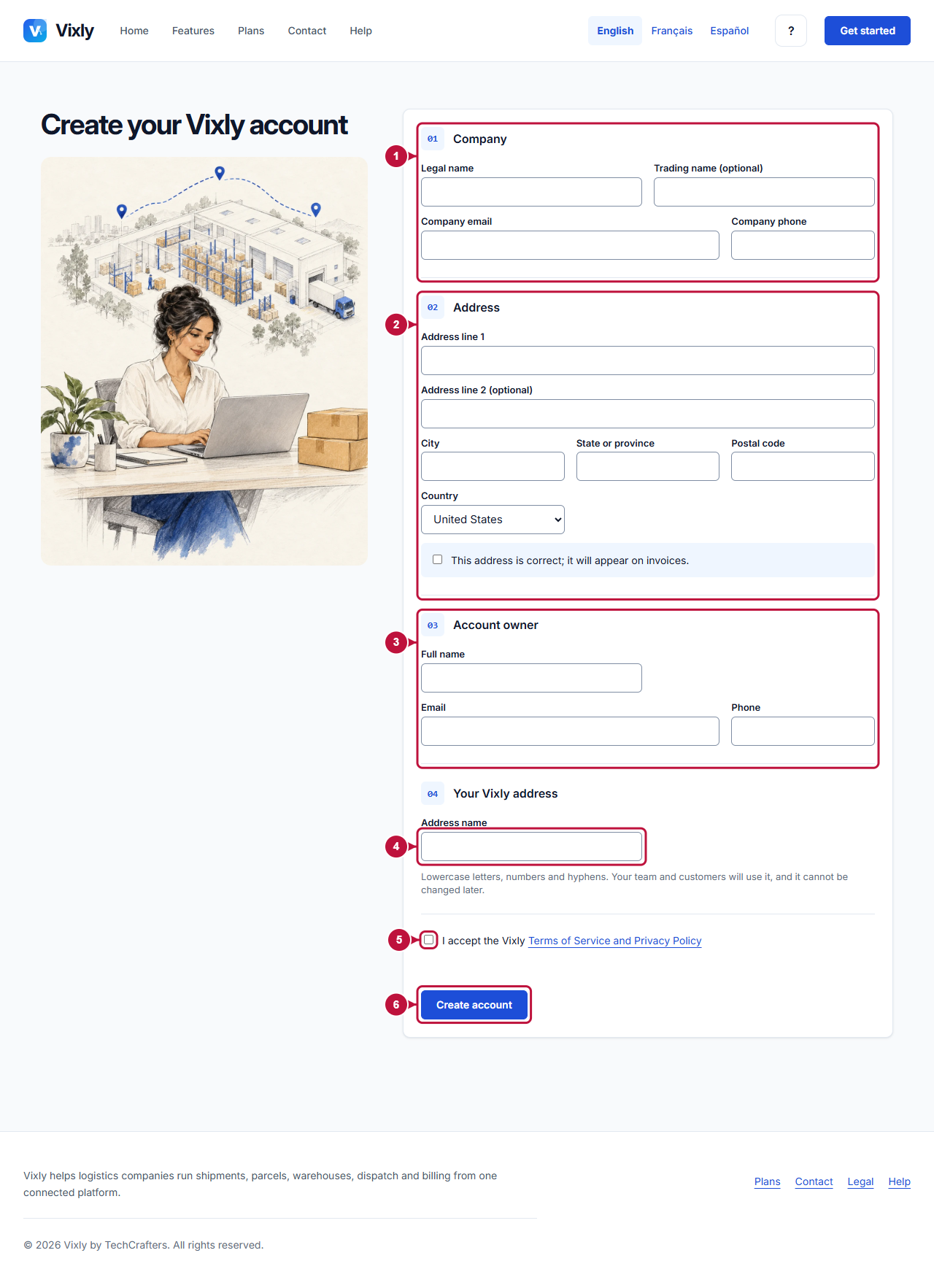
Illustrative screen with fictional demo data. Prices, dates and available choices may differ. Select the image to open it at full size.